How to Watermark Photos for Clients Before Sending Proofs
Add a text watermark to one photo on iPhone or Mac, or apply a logo to a whole shoot in Lightroom Classic. Export a proof your client can review.

To watermark a photo for a client, make a copy, add visible text or a logo, and export the marked copy as a JPEG. Keep the clean original in a separate folder for delivery. For one photo, use the editor already on your phone or Mac. For a whole shoot, save a watermark preset and apply it during export.
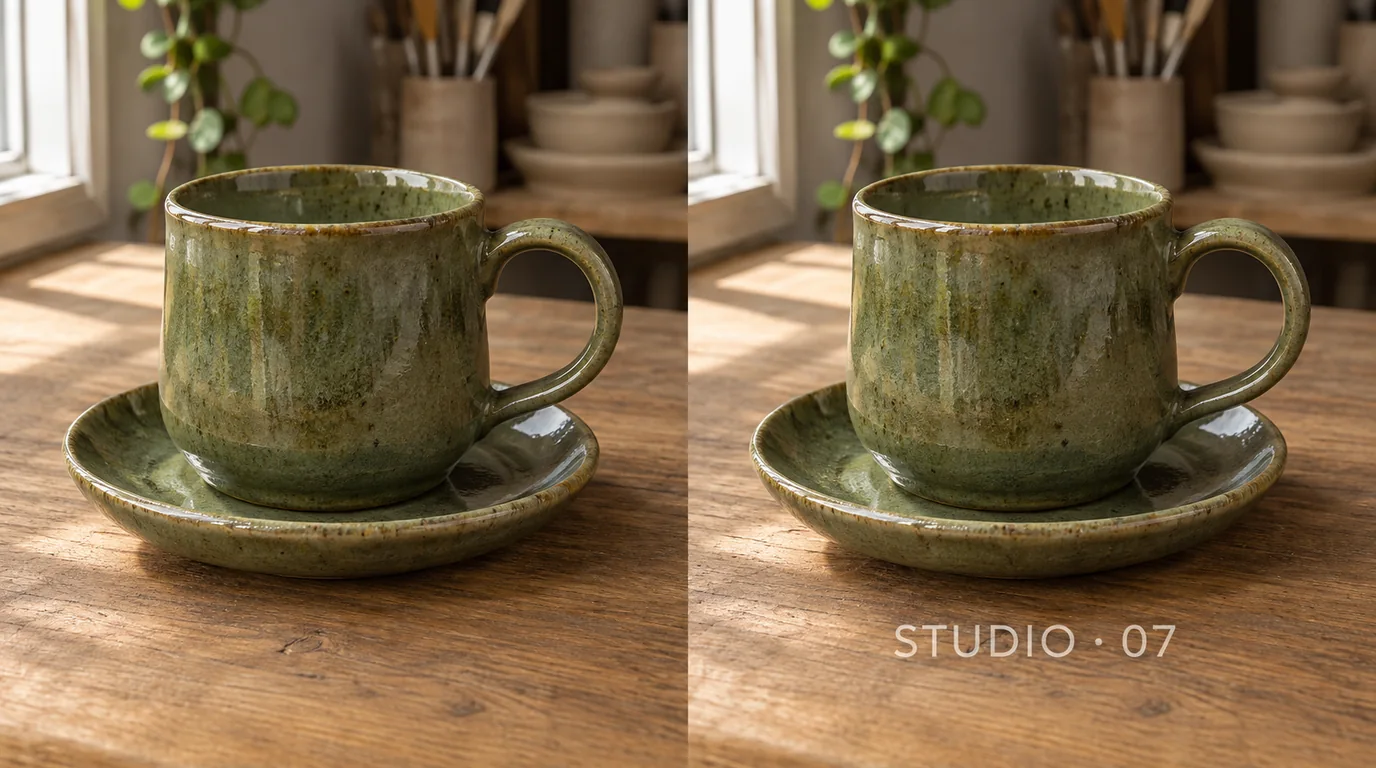
In the example above, the proof on the right carries STUDIO · 07 on the table below the saucer. A pottery client can still judge the shape of the handle and the glaze. The number also gives them an easy way to tell you which shot they want.
Put a watermark on a LOCK.PUB album cover
Sign in to a Pro or Business account and open the image link creator. If the option is available, select Show one cover under Album cover. Choose a photo from the album or upload a separate cover image. Use a shot you are comfortable showing publicly. Anyone with the active link can see and save this low-resolution image before entering the password. Albums restricted to specific recipients cannot have a public cover.
Turn on Repeat a watermark on the cover and enter 1–24 characters on one line, such as STUDIO · 07. Select Preview the public cover and check the mark on your own photo before creating the link.
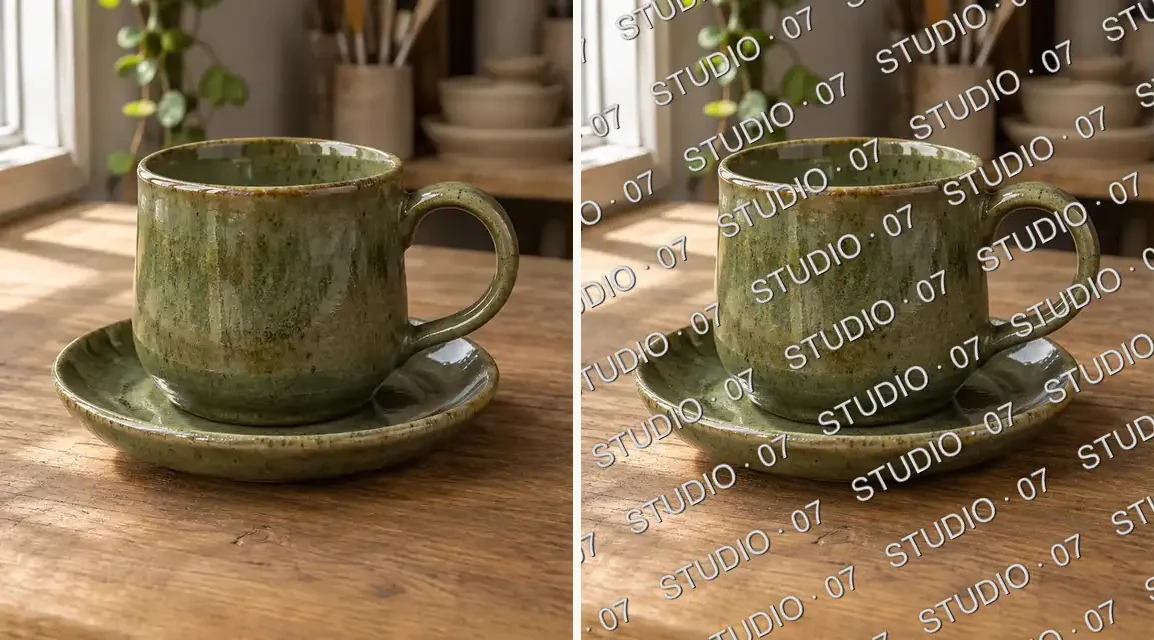
After unlocking, the client sees the photos as you uploaded them. If they need to compare several watermarked proofs inside the album, add the mark to each exported file before uploading it.
Add a text watermark to a photo on iPhone
- In Photos, open the photo, tap the More button (•••), and choose Duplicate. Open the copy.
- Tap Edit → Markup, then tap + and choose Add Text. Enter your studio name and a short proof number.
- Drag the text into place. Check that it stays legible at phone size and leaves the detail your client needs to assess visible. Tap Done to save your changes. Apple’s Markup guide
Need to convert an iPhone photo to JPEG?
Export the marked copy as JPEG, then reopen it to check the mark before sending. If the saved file still ends in .heic, follow the iPhone HEIC-to-JPEG steps.
Watermark one photo in Preview on Mac
In Finder, select the image and press Command-D to make a copy. Open the copy in Preview, show the Markup Toolbar, and choose Text. Type the mark, drag it into place, and adjust its size and color with Text Style. Choose File → Export, select JPEG, and save it with a name like mug-07-proof.jpg. Working on a copy matters because Preview saves annotations into the image. Apple’s Preview markup guide · Preview export formats
Batch watermark photos in Lightroom Classic
- Select the photos and choose File → Export. Set the export location to a dedicated proofs folder and choose JPEG under File Settings.
- In Watermarking, open the watermark editor. Choose Text for your studio name or Graphic for a logo. Adjust the size, opacity, and position, then save the preset.
- Select that preset for the export. Open a portrait, a landscape, and a photo with a bright background from the exported folder. A pale logo that reads well on a dark tabletop can disappear against a white wall. Adobe’s Watermark Editor guide · Lightroom Classic export settings
Send the proof and keep the original for delivery
Upload the exported proof to the LOCK.PUB image creator, set a password, and send the password separately from the link. A reusable link lets the client open the photo again while comparing shots. They can save or screenshot what they see, so check the exact file you upload. Create a password-protected image link
When the client picks 07, match that number to your clean original and send the final file separately. Using the same number in both filenames saves you from guessing which “green mug with the handle on the left” they meant. Freelance file delivery guide
Create Image
Keywords
You might also like
How to Convert an iPhone Photo to JPEG
Turn an existing HEIC photo into a JPEG on iPhone, check the exported file, and set your camera to save future photos as JPEG.
7 Japanese LINE messages for collecting year-end party fees
Organizing a bōnenkai in Japan? Copy a Japanese LINE message for the group invitation, private bank details, payment reminder, cancellation refund or receipt.
Create an Anonymous Message Link for KakaoTalk Groups and Profiles
Make a password-protected question board, share its public link on KakaoTalk, test the visitor view, and understand what anonymous questions do and do not hide.