A Client Project Chat Room Without Exchanging Phone Numbers
Set up an invited browser chat for a short client project. Walk through guest entry, protected notes and links, attachment limits, and returning to the room.
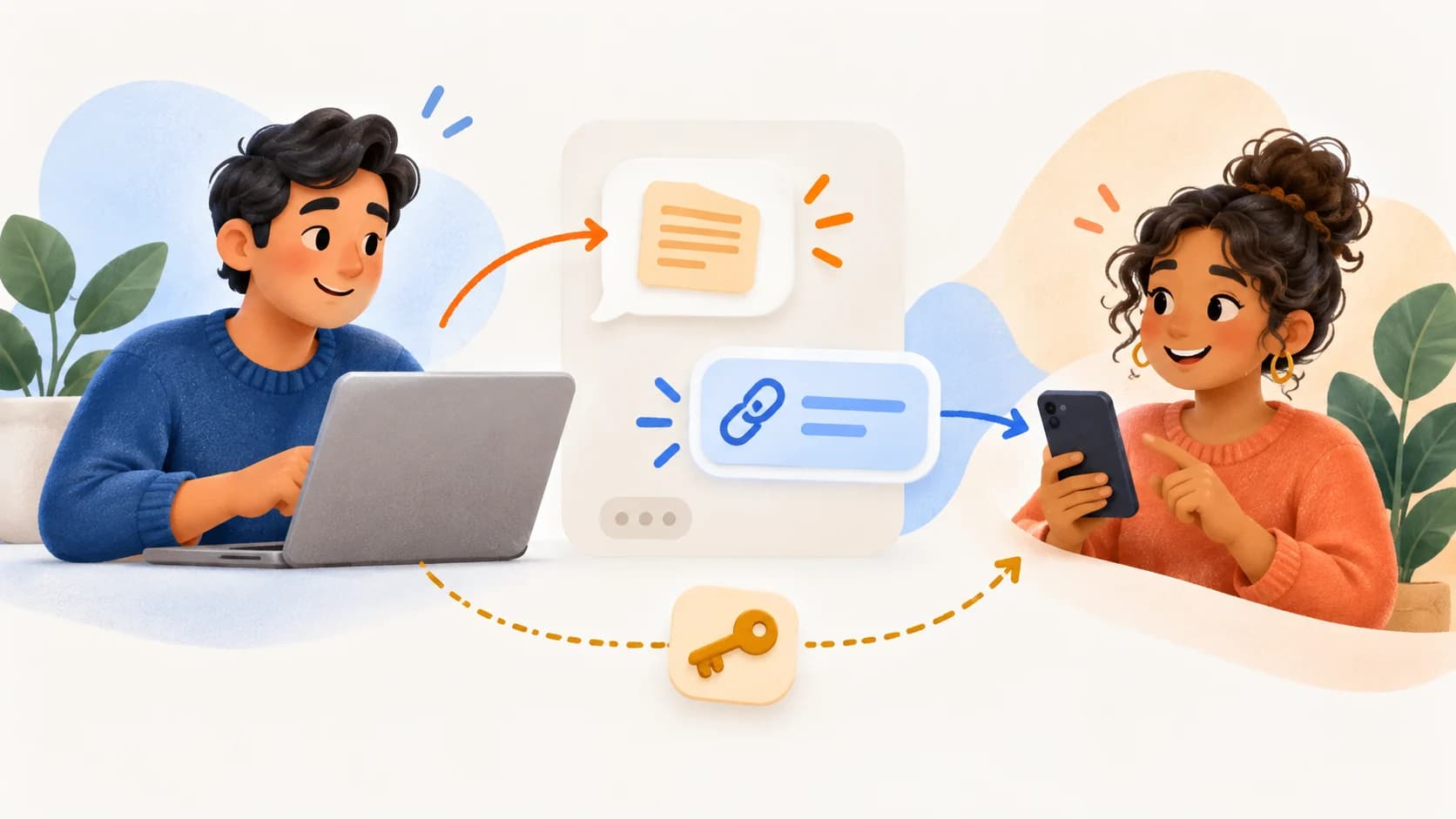
For a short project, you may need a conversation with a client without adding them to your personal messenger or a permanent workspace. A LOCK.PUB chat room lets you share an invite link and a room password. Participants can join in a browser without registering a LOCK.PUB account or exchanging phone numbers.
Joining the conversation and creating an attachment are different actions. Text chat does not require a participant account. Creating guest memos and short links inside the room using its quota requires the room owner's eligible paid plan and an explicitly enabled room setting. Creating files, images or voice attachments follows the sender's own creation access and plan limits; the interface may ask them to sign in.
A worked example: reviewing a homepage draft
This is an illustrative workflow, not a customer story. Imagine a designer and a client reviewing the navigation of a sample homepage over two days. They need a place for short comments, a link to the draft and a protected note listing the agreed changes.
| Decide first | Example for this project |
|---|---|
| Who should join? | The designer and the client's designated reviewer |
| What can be public? | A label such as “Homepage review” |
| What stays inside? | Review comments and the list of changes |
| What is the deadline? | Agree on the review period; configure expiry if the owner's plan supports it |
| Where is the final decision kept? | In the project's usual approved record, rather than relying on an expiring chat |
A public label is visible before entry. Keep client names, confidential project details and credentials out of that label. Confirm that the room is suitable for the information and the organization's working rules.
1. Create the room
Open the anonymous chat tool. Choose a long, unique room password and a nonsensitive public label. If you need the room's available advanced settings, use the full chat creator.
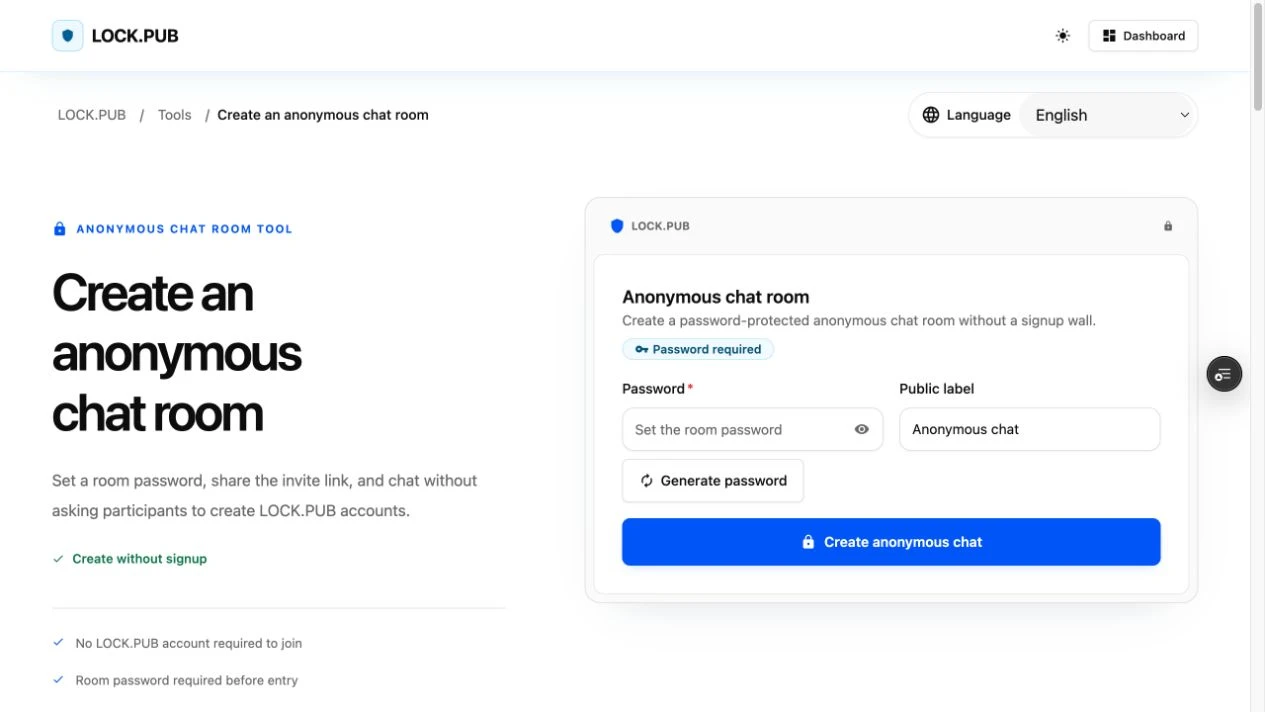
The screenshot above shows the actual creation form before password entry, with its default public label. The header artwork is an illustration.
Save the resulting room link and password before inviting anyone. A guest-created room and an account-managed room have different management options; do not assume that signing in later will recover a lost room password.
In our example, the designer creates a room labelled “Homepage review.” The password is unique to this room, not the client's website login password.
2. Invite the intended reviewer
Send the room link to the known reviewer. Share the room password through a separate trusted channel when possible. Include the task and agreed review deadline, so the recipient knows why they received the link.
For example: “Please review the navigation draft in this room by Thursday. I will send the room password separately.” This is sample invitation wording, not a claim about how quickly a real client will respond.
A person who receives both pieces can pass them on. A nickname does not prove identity, so confirm the recipient through an existing contact before discussing sensitive details. LOCK.PUB creates an invited room; it does not match you with random strangers.
3. Join as a participant
The reviewer opens the link and enters the room password. If the form offers a display-name field, they may choose a name; otherwise a name is assigned. They can then read and send chat messages without creating a LOCK.PUB account.
Start with a short confirmation such as “I'm reviewing the navigation draft.” Keep the conversation focused on the project. Avoid posting account passwords or personal data just to demonstrate the room.
For a Free room, the 50-message allowance is shared by the whole room, not renewed for each participant. An eligible paid owner removes that room message-count cap. Per-message and other operating limits still apply; paying does not remove every limit.
4. Hand off a protected note or draft link
When the paid room owner has enabled guest memo and short-link creation, a guest can open the attachment menu and choose Memo or Short link. The menu shows the room quota when this feature is available. These attachments use the room password automatically.
In the example, the reviewer makes a memo containing three agreed navigation changes. Creating it inserts the protected link into the message composer. Press Send to share that message with the room; creating the memo is not the same as sending it.
| What you want to do | Which access applies? |
|---|---|
| Send a text chat message | Room entry with its link and password |
| Create a guest memo or protected short link inside the room | Eligible paid owner, guest creation enabled, and remaining room quota |
| Create a file, image or voice attachment | Your own creation access and the applicable plan/storage limits; sign-in may be requested |
| Open a linked document hosted elsewhere | That service's original access permissions still apply |
If the room's guest creation option is absent or exhausted, ask the owner to check its settings. A Pro room does not give every participant unlimited file uploads. If you create media through your own account, follow the creation screen and return to the original chat to review the inserted link before sending it.
Protecting a document URL adds a password step in front of that link. It does not change the original document's sharing rules or take back copies. See Google Drive link permissions and password protection when your draft is hosted there.
5. Return to the conversation
Keep the original invitation and room password. Opening the invite takes you to the room's password gate. An already open room tab may resume a still-valid session after a refresh, but leaving the room clears its local session. A new tab, another browser or an expired session may require entry again. Account login does not replace the room password, and drafts are not guaranteed to follow you between browsers.
If entry fails, confirm the link and password with the sender. If the room reports that access has ended, contact its owner. For a pending message or attachment, follow the interface's retry or status prompt before submitting another copy. The chat room guide separates entry, reconnection and attachment issues.
End the project with clear expectations
Agree where to keep the final approved decisions before the room's access ends. Pro expiry prevents later opening through the room link; it does not erase screenshots, downloaded attachments or text someone copied. The room password is sent to LOCK.PUB over HTTPS for access verification, so browser encryption is not a zero-knowledge guarantee from the service.
For the sample review, the designer records the agreed navigation changes in the project's usual record and tells the reviewer when the chat will no longer be needed. There is no promise of automatic destruction or a permanent archive.
Create an invited project chat room
Related product guides
Create an anonymous chat room
Set a room password, share the invite link, and chat without asking participants to create LOCK.PUB accounts.
Create anonymous chatKeywords
You might also like
Family Emergency Binder Checklist: Free Printable PDF
Download a free family emergency binder checklist. Record trusted contacts, document locations and review dates without collecting passwords or full account numbers.
Share Google Drive files without a Google account: two practical options
Let recipients open a Drive file without signing in, or invite verified Workspace visitors. Compare access settings, PIN checks and password link limits.
Create an Anonymous Message Link for KakaoTalk Groups and Profiles
Make a password-protected question board, share its public link on KakaoTalk, test the visitor view, and understand what anonymous questions do and do not hide.