Share Google Drive files without a Google account: two practical options
Let recipients open a Drive file without signing in, or invite verified Workspace visitors. Compare access settings, PIN checks and password link limits.
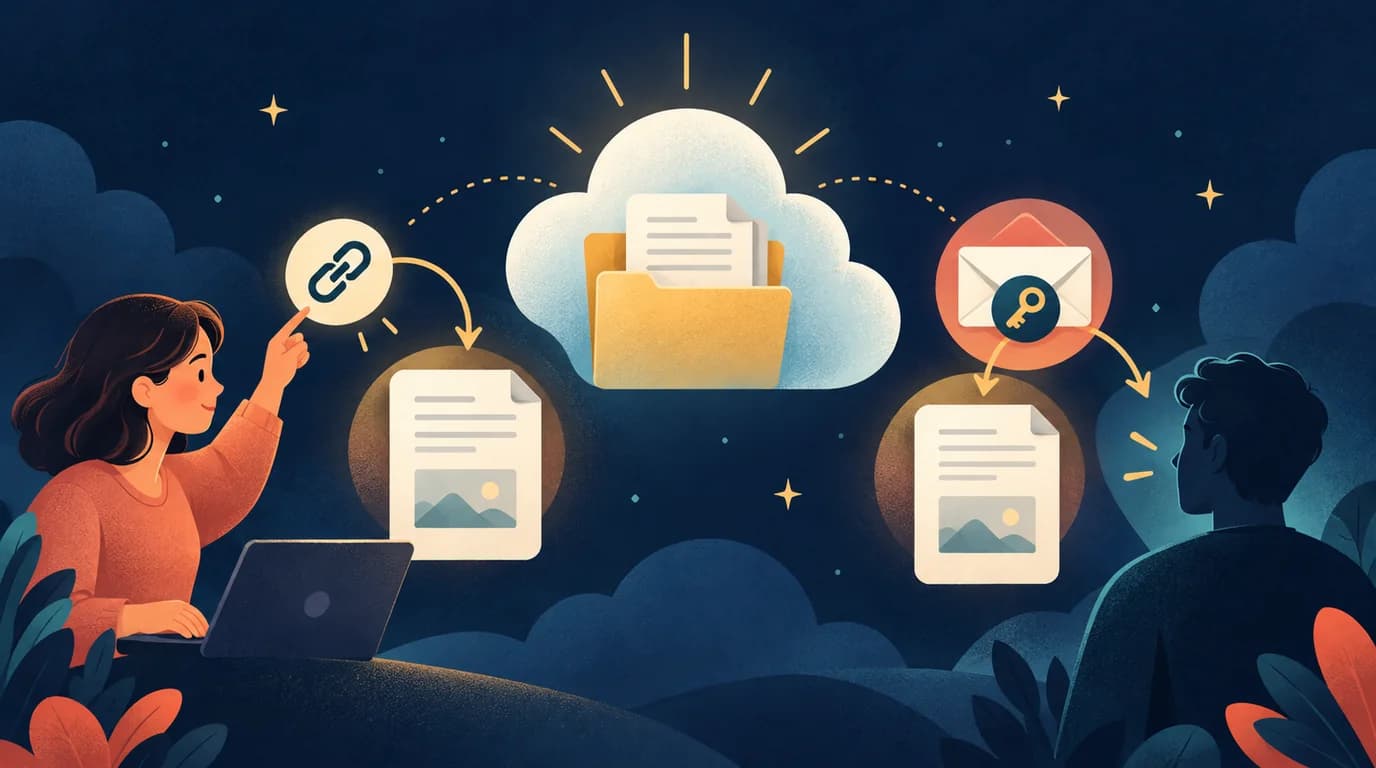
A recipient does not always need a Google account to open a Drive file. The useful question is whether you want anyone holding a link to see it, or a particular person to prove control of their email address. Those are different sharing decisions, even when neither requires creating an account.
For a public event timetable, a view-only link may be enough. For a client reviewing a draft, eligible Google Workspace organizations can use visitor sharing. Visitor invitations must be sent from a work or school account whose organization has enabled visitor sharing. A personal Gmail account cannot send these visitor invitations. Decide on the audience before changing the file's settings.
Choose the access route
| Your situation | Starting point | What the recipient needs |
|---|---|---|
| A nonconfidential handout for a broad audience | Anyone with the link, Viewer | The file URL |
| A named external collaborator | Workspace visitor invitation, if enabled | Access to the invited email inbox and a PIN |
| A confidential file with no suitable visitor option | Keep access restricted; agree on another approved delivery method | A method appropriate for the information |
An email address outside Gmail may already belong to a Google account. Ask which situation applies instead of assuming every non-Gmail recipient is a visitor.
Option 1: make a view-only link
Use a harmless sample file while you learn the controls. On a computer:
- Open the file's Share dialog in Drive.
- Find General access. If available and appropriate, select Anyone with the link.
- Set the role to Viewer unless collaboration actually requires more.
- Save the change, then use Copy link.
- Open that copied URL in a private browser window where you are signed out of Google.
Check that you see the intended file and cannot edit it. A work or school administrator can prevent broad external sharing, so an absent option is not necessarily a browser problem.
Treat the URL as forwardable. A recipient can pass it to someone else, and removing a password from a separate message does not withdraw Drive access. Also inspect the file's contents: a public timetable can accidentally include a private phone number or a second sheet with personal details.
Option 2: invite a Workspace visitor
Visitor sharing must be enabled for the sender's organization. The sender invites the recipient's email address and chooses the appropriate viewing, commenting or editing role. The recipient opens the invitation, receives Google's verification code by email and enters it to start a visitor session.
Google documents a seven-day verification session. After that, the recipient can return to the original invitation and verify again if access remains available. This does not mean the file is deleted after seven days or that the owner's sharing permission automatically expires.
Agree on the intended task first: reviewing a PDF is different from uploading files to a shared folder. Visitor capabilities depend on the file and location; they do not provide every feature of a full Drive account. If the invitation route is unavailable, ask the Workspace administrator before exposing the file through a broad link.
Use a computer web browser for visitor access; mobile devices and Drive for desktop do not support it. Visitors cannot create or upload files in My Drive. Uploading to a shared-drive folder requires a supported edition and the appropriate folder permission.
If the recipient still sees a sign-in request
- Reopen the actual file's sharing dialog. Copying its URL did not change its access rules.
- Confirm that General access allows the intended audience; organization-only access is not an anonymous link.
- For visitor access, open the original invitation sent to the exact email address and look for the PIN message, including spam.
- Inspect parent-folder or shared-drive permissions when access is inherited. Adjust the relevant permission instead of repeatedly creating links.
- Repeat the signed-out check after saving changes. Keep the file restricted if the result remains uncertain.
Where a password link helps
LOCK.PUB can place a password prompt in front of a shared URL. That prompt protects the LOCK.PUB wrapper, not Google's file permissions. Someone who has the original Drive URL can use it according to Google's settings; wrapping an anyone-link does not make the underlying file private.
Use a wrapper for a deliberate extra step in distributing a suitable link. Revoke access in Drive when the audience should lose permission, and check any folder access too. For sensitive material, prioritize restricted sharing or appropriate file encryption.
Related guides and official references
Create link
Create linkKeywords
You might also like
Google Drive Link Leaked? Revoke Access and Check Sharing
Sent a Google Drive link to the wrong person? Restrict access, remove direct and inherited permissions, and check what revocation cannot undo.
How to Set an Expiration Date on Google Drive Sharing
Set temporary access in eligible work or school accounts, close sharing manually on personal accounts, and understand what an expiring link can protect.
Can You Password Protect Google Sheets? Sharing and Sheet Protection Explained
Keep formulas safe from edits and private data away from unwanted readers. Learn what Google Sheets protection, restricted sharing, and password links actually do.